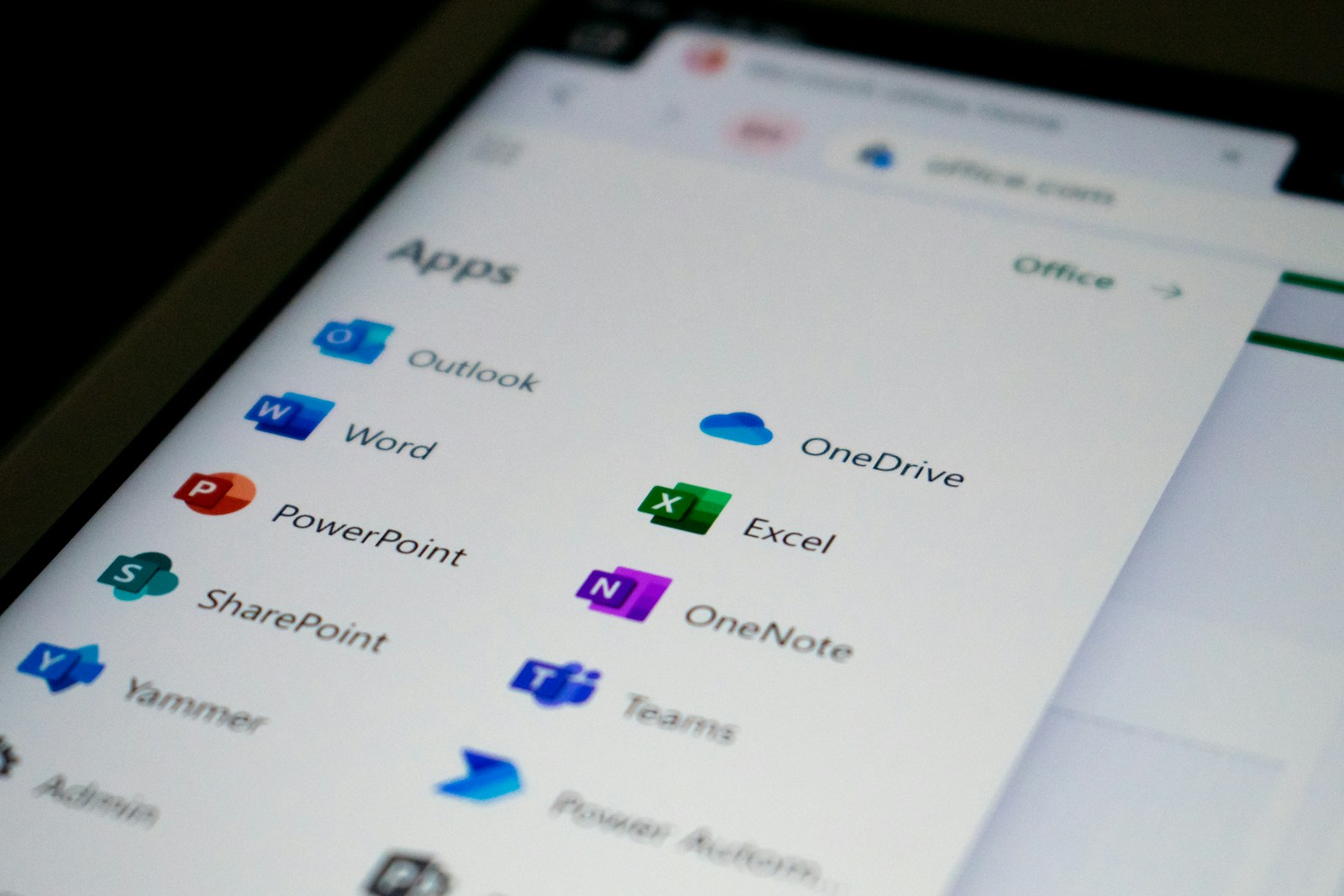
If you’re hunting for a cheaper Microsoft Word alternative without sacrificing features, you’ve got options, good ones. We’ve tested a mix of free cloud editors, robust desktop apps, and budget paid suites that handle everyday documents, reports, and even long-form writing. Below, we’ll break down what to look for, then recommend tools that balance cost, compatibility, and polish so we can switch without headaches. What To Look For In A Word Alternative Before we jump into picks, we should align on must‑haves: With those lenses on, here are the best alternatives to Microsoft Word across cloud, desktop, and budget tiers. Best Free Cloud-Based Editors Google Docs Google Docs is the obvious free pick for fast collaboration. We get real‑time co‑editing, granular comments and suggestions, and frictionless sharing. Version history is a lifesaver when a draft goes sideways, and add‑ons cover power features like citation managers and mail merges. Where it shines: team writing, meeting notes, proposals, and anything that benefits from simultaneous edits. It exports to .docx and PDF reliably for most documents. Trade‑offs: advanced formatting (complex multi‑column layouts, custom numbering, precise typography) can drift on export, and very long documents can feel heavy. There’s offline support via the Chrome extension, but we wouldn’t rely on it for mission‑critical work without testing. Zoho Writer Zoho Writer flies under the radar and deserves more attention. It’s clean, fast, and unusually good at .docx import/export for a free web app. We like its document automation features (mail merge, fillable fields), collaboration tools, and the ability to lock down sections of a doc when we’re delegating. Standouts: a distraction‑free mode, solid template library, and helpful pre‑publish checks that catch style inconsistencies. If we’re already using other Zoho apps, Writer integrates nicely without feeling bloated. Watch‑outs: some features sit behind Zoho’s broader ecosystem, and while it handles styles well, power users coming from Word may need to tweak complex layouts. OnlyOffice Docs (Cloud) ONLYOFFICE Docs uses the OOXML formats (.docx) as native, which boosts fidelity when we exchange files with Word users. The interface feels familiar, ribbons, styles, sections, and collaboration is real‑time with track changes and comments. Free angles: ONLYOFFICE offers a free Personal cloud for individuals, and if we’re comfortable self‑hosting, the free Community Edition lets us run our own collaborative document server. For many of us, that’s a big win on control and privacy. Considerations: the SaaS offerings for teams vary by plan, so we’ll want to verify storage and user limits. Feature parity with Word is strong for core tasks, but niche layout features still merit a quick export test. Best Free Desktop Apps LibreOffice Writer LibreOffice Writer is the go‑to free desktop word processor. It’s open source, powerful, and fast on big documents. Styles, outline view, mail merge, and master documents are all there, and it doesn’t need the internet. For complex, long‑form writing where we want total control, Writer is a workhorse. Strengths: stability on long docs, great PDF export (with options to embed fonts and tags), and a mature styles system. It opens and saves .docx, though we’ve found the best results come from staying in ODT while drafting and exporting to .docx at the end. Caveats: occasional formatting differences when round‑tripping .docx (especially with intricate templates). If we collaborate with strict Word shops, we should test those workflows. OnlyOffice Desktop Editors ONLYOFFICE Desktop Editors brings the cloud experience offline, free and open source. It handles .docx natively, supports tabs for multiple files, and pairs nicely with ONLYOFFICE servers or cloud accounts for collaboration when we reconnect. Why we like it: very high compatibility with Word formatting, clean interface, and plugins for extras (PDF tools, thesaurus, converters). If document fidelity with .docx is our main concern, this is one of the strongest free desktop options. Limitations: fewer advanced publishing features than Writer, and some collaboration features depend on connecting to an ONLYOFFICE workspace. WPS Office Writer WPS Writer is a slick, lightweight Word alternative with a familiar UI and excellent template gallery. The free tier covers editing, basic PDF export, and cross‑platform apps. Pros: strong .docx compatibility, tabbed interface, good mobile apps. It’s easy to switch with minimal relearning. Cons: the free version includes ads and occasionally nudges us toward premium features. If we need ad‑free workspaces or advanced PDF tools, budget for the paid plan. As always, we should review privacy settings to match our comfort level. Budget Paid Options Worth Considering SoftMaker Office (TextMaker) TextMaker feels like classic Word, in a good way. It nails .docx fidelity, supports long‑document features (cross‑references, bibliography, master pages), and offers a polished PDF export with options like PDF/A. Pricing is typically much lower than Microsoft 365, with both subscriptions and one‑time licenses available depending on the edition. If we want a cheaper Microsoft Word alternative that still feels “pro,” this is a sweet spot. OfficeSuite OfficeSuite (by MobiSystems) is a streamlined suite across Windows, Mac, Android, and iOS. Writer handles .docx well, the UI is straightforward, and you’ll often find lifetime deals or low‑cost annual plans that undercut Microsoft 365. It’s ideal if we want one license across devices without heavy enterprise features. As with any paid pick, check the current plan matrix for cloud storage and device limits. For Markdown And Distraction-Free Writing Typora Typora is a minimalist Markdown editor where the preview is the editor, no split panes, no clutter. It’s fantastic for focus, and it exports cleanly to PDF, HTML, and .docx when we need to deliver in Word format. If most of our drafting happens in Markdown and we only switch to Word for final sharing, Typora is an inexpensive way to upgrade the writing experience. Obsidian Obsidian is a Markdown knowledge base rather than a traditional word processor, but it’s brilliant for research-heavy writing. Notes link together, we can map ideas in a graph view, and community plugins cover everything from citation management to .docx export via Pandoc. We draft in Markdown, organize our thinking, then export to .docx/PDF when it’s time to
Top 10 Free Alternatives to Spotify for Music Lovers
Spotify’s great, but it’s not the only game in town. If you’re chasing free alternatives to Spotify that still deliver discovery, playlists, and decent sound, we’ve done the digging for you. From video-driven experiences to indie-first platforms and old-school radio, these picks cover different listening styles without charging a cent. What to Expect From Free Music Streaming Catalog Limits, Skips, and Ads Most free tiers trade flexibility for cost. Expect ad breaks, limited on‑demand selection (especially on mobile), and skip caps on radio-style stations. Several services push you toward stations or curated mixes instead of exact song plays. Some let you unlock short on‑demand sessions after watching a video ad, but it’s temporary. The upside: discovery can actually improve when we lean into stations and algorithmic mixes, since you’re nudged beyond your usual rotation. Audio Quality and Device Restrictions Free audio quality typically sits in the “good enough” range, think 128–160 kbps MP3/AAC. It’s fine for casual listening, less ideal for hi‑fi setups. Offline downloads are rare on free plans, background play on mobile can be limited, and certain features (gapless, enhanced lyrics, higher bitrates) stay paywalled. Desktop and web players often give more control than mobile apps on free tiers, so it’s worth trying each platform you use most. How We Chose These Alternatives We prioritized services that feel good to use every day: solid catalogs, useful discovery, stable apps, and a truly viable free experience, not a bait-and-switch. We also weighed variety (radio, on-demand, live, indie), platform support (web, mobile, speakers, Auto), and standout features like lyrics, videos, or community tools. Finally, we considered ad load, audio quality, and how well each service helps you find and save music you’ll actually return to. The result is a balanced list that covers a range of listening habits, from lean‑back radio to deep‑dive crate digging. The 10 Best Free Alternatives YouTube Music, Best for Music Videos and Remixes If you live on YouTube, this one’s a no‑brainer. YouTube Music taps the massive video catalog for official tracks, live sessions, remixes, and fan uploads you won’t find elsewhere. Free users see (and hear) ads, and on mobile you’ll get more of a radio/shuffle vibe with limited background play. Still, for discovery through videos, it’s unmatched. Pandora, Best for Lean-Back Radio Pandora’s Music Genome Project remains a gold standard for station-based discovery. Start with an artist or song and let it roll. The free tier includes ads and skip limits, but you can occasionally trigger a short on‑demand “Premium Access” session by watching an ad. It’s perfect when we want easy, hands-off listening. SoundCloud, Best for Independent Artists and DJs SoundCloud is where bedroom producers, DJs, and indie artists launch first. You’ll find remixes, edits, and early releases long before they hit the majors. Free accounts come with ads and some regional restrictions, but the community features (comments on waveforms, reposts) make discovery feel social, not just algorithmic. Deezer, Best for Flow Discovery and Lyrics Deezer’s Flow is a smart daily mix that blends favorites with fresh picks. The free tier is ad‑supported and more shuffle‑oriented on mobile, but the recommendations are consistently strong. Bonus: excellent lyrics support and handy extras like SongCatcher (audio recognition) if you upgrade later. A solid option for pop, global music, and easy everyday use. Amazon Music Free, Best for Casual Listening With Alexa If you’ve got Echo speakers or use Alexa, this is the smoothest free setup. You get ad-supported stations and playlists without a subscription. The selection is curated rather than fully on‑demand, skips are limited, and audio quality is basic, but voice control and household convenience are hard to beat. iHeartRadio, Best for Live Radio and Podcasts For local stations, live broadcasts, and talk formats, iHeartRadio is still the easiest door in. Add artist-based stations and a big podcast library, and you’ve got a one‑app radio experience. Expect ads and skip limits, and don’t come in expecting true on‑demand albums: do come in for news, sports, morning shows, and nostalgia. Audiomack, Best for Hip-Hop, Afrobeats, and Emerging Scenes Audiomack leans into vibrant, fast-moving genres, hip‑hop, Afrobeats, amapiano, dancehall. Charts and playlists surface what’s breaking now, and many creators allow in‑app offline downloads even on free accounts. You’ll see ads and not every track is cacheable, but if you like being ahead of the curve, it’s a gem. Bandcamp, Best for Direct Artist Support and Deep Dives Bandcamp is part store, part streaming, part culture. You can usually stream full tracks a few times for free, read long‑form editorial on Bandcamp Daily, and go straight to buying digital or vinyl to support artists directly. It’s not a passive radio replacement: it’s for intentional listening and discovering scenes you’ll want to invest in. Jango, Best for Simple, Personalized Stations Jango keeps it old‑school: pick an artist, get a station, fine‑tune with thumbs. The interface is minimal, ads are relatively light, and it just plays. Independent artists can promote songs in the mix, which occasionally introduces left‑field finds. Great when we want something effortless beyond the big brands. LiveOne (Formerly Slacker Radio), Best for Genre Stations and Events LiveOne blends curated genre stations with live festival streams and hosted shows. The free tier has ads and skip caps, but the curation skews more editorial than algorithmic, which can be refreshing. If you like the feeling of a DJ guiding the session, LiveOne is a strong pick. How They Compare at a Glance Discovery and Playlists Ad Load and Audio Quality Platform Support and Integrations Tips to Get More From Free Tiers Mix Services to Cover Catalog Gaps Use YouTube Music for videos and remixes, SoundCloud for unreleased edits, and a radio app (Pandora, Jango, iHeartRadio) for passive discovery. Dip into Bandcamp when you want to go deep on an artist or label and actually support them. Use Playlist Transfer and Scrobbling Tools Keep your library portable with TuneMyMusic, FreeYourMusic, or Soundiiz. For listening history and recommendations that follow you across apps, enable Last.fm scrobbling (Simple Scrobbler/Pano

How To Transfer All Your Photos From An Android To An iPhone
Moving platforms is exciting, until we hit the camera roll. If you’re wondering how to transfer all your photos from an Android to an iPhone without losing quality or metadata, we’ve got you. There isn’t just one “right” path: the best method depends on whether we want a set‑and‑forget cloud workflow, a one‑time local copy, or a clean, guided move during setup. Below, we break down four reliable approaches, with pro tips to keep originals intact, avoid duplicates, and land with everything organized on day one. Before You Start: Prep, Storage, And Settings A little prep prevents long nights staring at progress bars. Method 1: Use Move To iOS During Setup Apple’s Move to iOS app is the most straightforward for a brand‑new iPhone. It happens during setup and pulls camera photos and videos directly from Android. Pros: Guided, no computer required. Cons: Only during initial setup: not always perfect with non‑camera folders. Step-By-Step Transfer Step-By-Step Transfer Notes: Move to iOS typically pulls camera roll/DCIM content. If you keep media in app‑specific folders (WhatsApp, Instagram, Screenshots, Downloads), review afterward and manually copy any stragglers. If the transfer fails repeatedly, you can retry, but only by erasing the iPhone (Settings > General > Transfer or Reset iPhone > Erase All Content and Settings) and running setup again. Method 2: Migrate To iCloud Photos At Full Quality If we want everything living natively in Apple’s Photos ecosystem, synced across Mac, iPad, and iPhone, this is the most robust path. We consolidate originals on a computer, then let iCloud Photos handle the heavy lifting. Pros: Preserves originals and EXIF, great long‑term setup. Cons: Requires a Mac/PC and time for uploads. Key tip: iCloud Photos mirrors your library exactly. Make sure we’re uploading the best, deduplicated version of our archive before sync runs wild. Upload Via iCloud And Enable On iPhone Upload Via iCloud And Enable On iPhone Option A: Using a Mac Option B: Using Windows Tip: If we’re moving from Google Photos, consider Google Takeout for a full‑quality export (Original quality). Be aware Takeout emits JSON sidecars for captions/edits: not all metadata maps 1:1 into Apple Photos. Method 3: Keep Or Consolidate With Google Photos Staying with Google Photos is perfectly valid. The iOS Google Photos app is excellent, with smart search and sharing. Trade‑offs: iOS‑native features like Memories, People, and Spotlight integration work best with Apple Photos. Google Photos is outstanding at cross‑platform access and shared libraries. Method 4: Manual USB Transfer Via Computer Prefer maximum control and speed without cloud limits? A local, manual transfer works great for very large libraries. On a Mac On Windows Pros: Fast, offline, preserves originals. Cons: More manual steps, and you must watch for duplicates if you merge from multiple folders. Troubleshooting And Post-Migration Checklist If Move to iOS stalls or fails If iCloud Photos won’t finish uploading If counts don’t match If metadata looks off Post‑migration checklist Conclusion There’s no single best way to move, only the best way for us. If we’re starting fresh, Move to iOS is the quickest. If we want Apple’s Photos as our long‑term home at full quality, consolidate on a Mac/PC and let iCloud Photos take it from there. If we love Google Photos, keep it on iPhone and call it a day. And when we need full control, a manual USB transfer is rock‑solid. Take the extra hour to prep and verify, future us will thank us every time we open the Photos app.

Top 5 Note-Taking Apps for College Students: A Comprehensive Review
Campus life moves fast, lecture slides drop minutes before class, group projects spin up overnight, and assignments live across email, LMS portals, and DMs. The right note‑taking app doesn’t just capture information: it helps us organize, recall, and collaborate without wasting time. We tested the top note‑taking apps for college students across phones, tablets, and laptops, focusing on speed, search, stylus support, web clipping, PDF markup, collaboration, offline access, and export options. Here’s our clear, no‑nonsense take on which app fits which student, so you can stop app‑hopping and start cruising through the semester. Notion: Best for All-In-One Workspaces and Group Projects If your semester looks like a swirl of labs, group projects, and clubs, Notion is the all‑in‑one workspace that keeps the chaos tidy. Think pages, databases, wikis, Kanban boards, calendars, and docs all living under one roof. We love how a single project page can house your task board, meeting notes, deadlines, and files, with comments and @mentions so everyone stays accountable. Why it shines for students Good to know Bottom line: Notion is our top pick when we need more than a digital notebook, especially for organizing multiple classes and managing team deliverables without spinning up five different tools. Microsoft OneNote: Best Free, Stylus-Friendly Digital Notebook OneNote feels like a classic campus binder, sections, pages, and subpages, with the bonus of excellent inking. It’s free, syncs across devices, and pairs beautifully with a Surface or iPad for handwritten notes. Typed text and ink can live side by side, so you can sketch a diagram, drop in a photo of the whiteboard, and type formulas beneath it. Why it shines for students Watch‑outs For a zero‑cost, stylus‑first digital notebook that doesn’t fight you during fast lectures, OneNote is tough to beat. Obsidian: Best for Knowledge Management and Markdown Power Users Obsidian is for those of us who want more than notes, we want a personal knowledge base. It stores your notes as plain Markdown files on your device, so you own your data and can sync but you like. Link concepts across classes, visualize connections with the graph view, and build a study system that actually compounds over time. Why it shines for students Good to know If you’re in research‑heavy majors or love the Zettelkasten vibe, Obsidian turns scattered notes into a connected knowledge network. Goodnotes: Best for Handwritten Lecture Notes and PDF Markup Goodnotes is our go‑to when the syllabus is PDF‑heavy and the professor lives on the whiteboard. On iPad with Apple Pencil, the handwriting feels close to pen and paper, with the perks of search and organization. Import slides, annotate readings, and keep neat digital notebooks by course. Why it shines for students Good to know For STEM problem sets, language classes, music notation, or any diagram‑heavy course, Goodnotes is the easiest way to keep clean, legible notes you’ll actually revisit. Evernote: Best for Web Clipping and Cross-Device Capture Evernote built its name on capturing anything from anywhere, and it still nails that job. The web clipper is excellent for saving full pages, simplified articles, PDFs, and screenshots into organized notebooks with tags. If your classes involve lots of online research, or you’re juggling internship searches and personal projects, Evernote makes cross‑device capture painless. Why it shines for students Good to know If your priority is capturing research cleanly and finding it fast later, Evernote remains a strong, familiar choice. Conclusion There’s no single “best” note‑taking app for every college student: there’s a best fit for how you actually study. Our advice: pick one primary app based on your core need, then pair it with a specialist. For example, Notion + Goodnotes covers projects and lecture handwriting: Obsidian + OneNote covers research and in‑class ink. Before committing, test three things: offline reliability, export options (avoid lock‑in), and how fast you can capture during a frantic lecture. The right setup should make your week lighter on day one, and still pay off when finals hit.

Is Bumble Really The Best Dating App For Singles Over 30?
We’ve all heard the pitch: Bumble puts women in control, cuts the noise, and leads to better conversations. But is Bumble really the best dating app for singles over 30? For tech-savvy daters juggling careers, travel, and a shrinking tolerance for bad first dates, “best” isn’t a vibe, it’s a system. Let’s unpack what matters at 30+, how Bumble actually performs, and when a different app might serve us better. What “Best” Means For Daters Over 30 Intent And Relationship Outcomes By our thirties, many of us want clarity up front, relationship intent, timelines, and family plans aren’t taboo: they’re filters. The best dating app for singles over 30 surfaces compatible intent without guesswork. That means visible badges for “Relationship,” “Open to kids,” lifestyle values, and prompts that show depth. Outcome-wise, we care less about matches and more about steady momentum toward a real-world connection. Time Efficiency And Control Time is the scarce resource. The ideal app reduces infinite swiping and dead chats. Features like smart prompts, quality filters, and timers keep conversations moving. Control also means tuning discovery: filters for age, distance, intent, interests, and the ability to pause, travel, or go incognito when work gets chaotic. Less clutter, more signal. Safety, Privacy, And Verification We want tools that protect our privacy without killing spontaneity. Photo or selfie verification, AI-backed content blurring, robust block/report, in-app voice/video calls, and a reliable incognito mode matter. Safety isn’t just optics at 30+: it’s table stakes for actually meeting people with confidence. How Bumble Works For 30-Somethings Women Message First And 24-Hour Timers Bumble’s signature: women send the first message in heterosexual matches and there’s a 24-hour window to kick things off (with extensions if needed). For many women, that cuts the inbox chaos: for men, it reduces cold outreach but demands solid profile craft. The timer nudges action, useful for busy schedules, though it can feel rushed if we’re slammed for a day. Profiles, Prompts, And Algorithm Signals Bumble profiles balance photos, basic info, badges (intent, family plans, politics, drinking, etc.), and prompts. The algorithm weights swipe behavior, profile completeness, recent activity, and message responsiveness. Clear intent badges and prompt answers increase match quality. Photos that show face, full-length, and context (hobby, social) help the algorithm and humans read us quickly. Pricing Tiers, Boosts, And Value For Money Free Bumble works, but Boost and Premium add speed. Boost offers conveniences like rematch and extends: Premium layers in advanced filters, Travel Mode, Beeline (people who liked you), incognito, and more. Spotlights and SuperSwipes can surge visibility for targeted windows. For 30-somethings, Premium’s filtering and incognito often deliver the best time-to-quality ratio, especially in dense markets. Strengths And Limitations Of Bumble At 30+ Where Bumble Excels For 30-Somethings Where Bumble Falls Short Who Bumble Is Best Suited For Bumble Versus Key Alternatives Hinge: Depth, Prompts, And Conversation Quality Hinge leans into substance: three prompts, likes on specific answers/photos, voice notes, and richer comment threads. For many 30-somethings, that yields better first dates because the banter starts specific. If we crave thoughtful conversation starters and slower, intentional pacing, Hinge can outshine Bumble: the trade-off is fewer matches but higher signal. Match And eHarmony: Screening And Serious Intent If our priority is long-term compatibility and timelines (kids, cohabitation, religion), Match and eHarmony excel. Longer questionnaires, compatibility scoring, and narrower discovery reduce swiping fatigue. They feel less “social” than Bumble and skew older, but for 30+ daters seeking commitment-first pools, they’re efficient. Expect fewer daily interactions and more structured outreach. Coffee Meets Bagel: Fewer, Curated Picks CMB limits daily suggestions, nudging us to consider each match. For time-strapped professionals, that cap prevents doom-swiping and encourages messages that land. It’s calmer than Bumble and Hinge, but the smaller user base means location matters. In mid-size cities, CMB can be a sanity-preserving complement to Bumble. Tinder And The League: Scale Versus Curation Tinder’s sheer volume can work in big metros if we wield filters and travel features, but intent can be all over the map. The League offers curated admissions and smaller pools: quality varies by city and price is steep. Bumble often sits in the pragmatic middle: larger than curated apps, more intentioned than swipe-anything giants. Pro Tips To Get Better Results On Bumble Over 30 Profile And Prompt Strategy Messaging And Scheduling That Work With Busy Lives Privacy And Safety Settings To Enable Recommendations By Goal, Location, And Lifestyle Big Cities Versus Smaller Markets Relationship Timelines And Family Planning Busy Professionals And Frequent Travelers Conclusion So, is Bumble really the best dating app for singles over 30? For many of us, yes, if we value control, safety, and quick momentum. Women-first messaging and verification create a cleaner lane to meet. But “best” is contextual: in smaller markets or for highly structured, commitment-first goals, pairing Bumble with Hinge, Match, or eHarmony often wins. Optimize settings, lead with specifics, and treat your time like the asset it is.
Review of the Latest Project Management Software for Remote Teams
Remote work isn’t a trend anymore, it’s the operating system for how many of us build products. For this review of the latest project management software for remote teams, we spent weeks living inside each platform across time zones, shaky Wi‑Fi, and real deadlines. The 2025 crop leans hard into automation and AI, but the winners still nail fundamentals: clarity, trust, and speed. Here’s what we found and what we’d actually recommend. How We Tested for Remote-First Realities Real-World Scenarios and Datasets We recreated typical remote work: a product launch spanning 9 time zones, an agency retainer with rotating stakeholders, and a sprint cycle with bug triage and discovery. We throttled connections to 3G, forced offline moments, and invited external clients as guests. Each platform got the same backlog, docs, and file sets. We tracked how quickly new teammates ramped, how well comments replaced meetings, and whether updates stayed trustworthy when half the team was asleep. Evaluation Criteria and Benchmarks We scored on clarity (views, status signals), async collaboration (comments, decisions, knowledge capture), automation/AI usefulness, integrations, mobile/offline reliability, admin guardrails, and total cost of ownership. Benchmarks included time-to-first-meaningful-board (<30 minutes), automation setup time (<20 minutes for four core rules), cross-tool integration depth (Git, Slack/Teams, Drive), and auditability (who changed what, when). Security, data residency, and SSO availability were table stakes at business/enterprise tiers. The Shortlist: Top Platforms in 2025 ClickUp: All-In-One Flexibility and Automations ClickUp remains the Swiss Army knife. Spaces, lists, docs, whiteboards, and dashboards live together, so cross-functional teams don’t bounce between apps. Automations are powerful yet approachable, and ClickUp Brain helps summarize threads, draft updates, and transform meeting notes into tasks. We like its Everything view for leaders. The tradeoff: setup can get intricate, and governance requires discipline. For startups and hybrid product/marketing groups, it’s a high-ceiling choice that can replace a bunch of point tools. Asana: Structured Workflows and Strong UX Asana shines when you want reliable process at scale. Timelines, Portfolios, Goals, and Rules make it easy to orchestrate multi-team programs without micromanagement. Asana Intelligence suggests fields, cleans up statuses, and summarizes project health. The UX is polished, onboarding is quick, and reporting is solid for OKR‑driven orgs. Downsides: the richest automation and admin features sit on higher tiers, and content creation (docs) is improving but still not a full docs hub for heavy knowledge work. Monday.com: Visual Pipelines and Integrations Monday.com’s WorkOS is built for people who think in boards and dashboards. It excels at client-facing pipelines, content ops, and operational checklists where status, owner, and due date are the main actors. Integrations and automations are extensive, with easy recipes to connect Slack, Salesforce, and more. We appreciate the visual clarity for exec summaries. Watch for automation/run caps and some permission granularity reserved for upper tiers. Great fit for agencies and operations teams that live in spreadsheets today. Jira Software: Deep Issue Tracking for Engineering Jira is still the backbone for serious engineering teams. Scrum/Kanban boards, advanced roadmaps, JQL, and tight integrations with Bitbucket, GitHub, and CI/CD keep engineers in flow. Jira AI helps summarize tickets and propose fields, which actually saves time in backlog grooming. Stakeholder views are better than they used to be, but non-technical collaborators may still feel friction. If you build software at scale, Jira is unmatched for issue tracking: just plan for thoughtful admin and training. Notion Projects: Docs-First Collaboration With Databases Notion Projects bridges tasks and knowledge seamlessly. You craft specs, meeting notes, and decisions in the same space where tasks live, and databases give you flexible views without admin overhead. Notion AI is genuinely helpful for summarizing long docs and extracting action items. It’s ideal for discovery-heavy teams and early-stage startups. Caveats: fine-grained permissions require care, resource/workload management is lighter than in dedicated PM tools, and offline is improved but not bulletproof. Collaboration and Workflow Findings Async Communication and Knowledge Sharing The best remote teams leave breadcrumbs. Asana and ClickUp do this with update templates, status reports, and comment threads that surface decisions. Notion leads when context matters, decisions can live right next to specs and tasks. Monday.com is great for quick status clarity, while Jira, paired with Confluence or Notion, solves the dev + doc split. Across the board, @mentions, recorded clips, and comment resolution cut meetings significantly when used consistently. Automation, AI, and Work Orchestration In 2025, AI is finally useful. ClickUp Brain, Asana Intelligence, Monday AI, Jira AI, and Notion AI all summarize threads, propose task fields, and generate follow-ups from meeting notes. The win isn’t novelty: it’s reducing manual coordination. We saw 10–20% fewer status pings when AI summaries were posted in Slack. That said, rules and automations still do most of the heavy lifting, auto-assigning, routing approvals, and nudging overdue work. Integrations, Mobile, and Offline Reliability Jira’s developer tool integrations are deepest: Monday.com wins breadth for business apps. ClickUp and Asana cover the common stack (Slack/Teams, Drive, Zoom) with straightforward setup. Notion’s API has matured, but some workflows still rely on third-party connectors. Mobile apps are solid across platforms for quick updates. Offline support has improved overall, yet true resilience varies, assume limited capabilities offline and plan for async habits rather than heroics. Security, Admin Controls, and Compliance Permissions, Audit Logs, and Admin Guardrails All five offer role-based permissions, SSO/SAML at higher tiers, audit logs, and SCIM provisioning. Jira and Asana provide strong enterprise guardrails (admin insights, project templates, approval workflows). ClickUp’s admin has matured with granular sharing and activity logs, though you’ll want standards for spaces/folders. Monday.com’s board-level security is clear but some advanced controls live on Pro/Enterprise. Notion’s workspace permissions are flexible: just document conventions to avoid oversharing. Data Residency, Compliance, and SSO SOC 2 Type II is table stakes here. Data residency options exist for Atlassian (Jira), Monday.com, and Asana on business/enterprise plans: ClickUp offers regional data options on upper tiers. HIPAA eligibility is available for Jira Cloud Enterprise and Monday.com Enterprise: ClickUp offers HIPAA on Enterprise. Asana and Notion have evolving stances, check current docs before storing
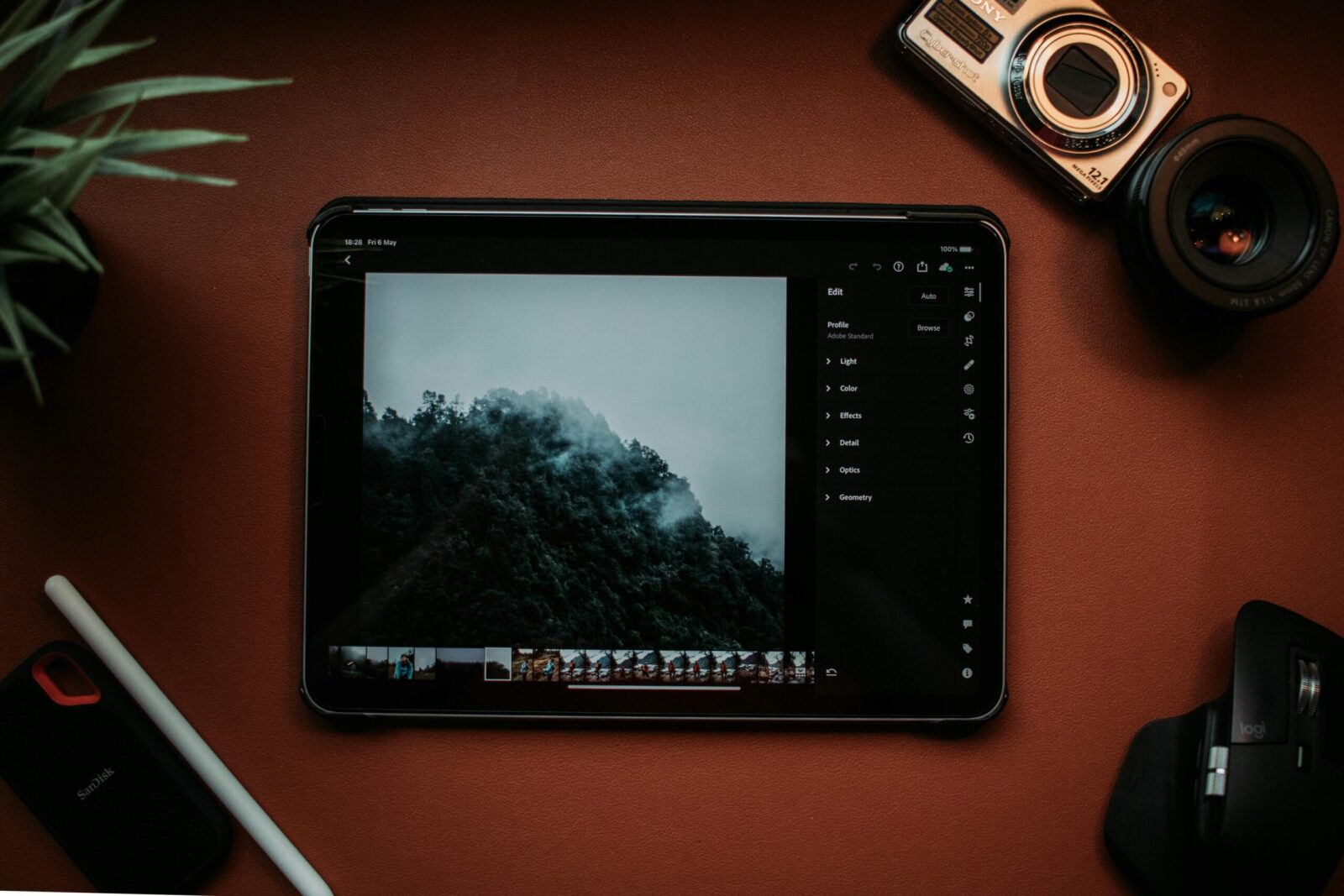
What Is the Best Free Photo Editing App for iPhone in 2025?
Every year we test the usual suspects, and a few dark horses, to answer the same question: what is the best free photo editing app for iPhone in 2025? If you shoot on an iPhone (especially the Pro models with ProRAW), you’ve got serious camera power in your pocket. The right free editor should match that power without nagging paywalls, clunky exports, or privacy trade-offs. After fresh testing across iOS 18 devices and thousands of real-world edits, we have a clear winner for most people, and several excellent alternatives depending on how you shoot and share. How We Chose: Criteria for the Best Free iPhone Photo Editor Editing Quality and RAW/ProRAW Support We prioritized apps that can actually handle the files we shoot. That means solid support for RAW and Apple ProRAW (DNG), correct color management, and clean rendering at full resolution. We looked for reliable basics, exposure, white balance, curves, sharpening, noise reduction, that don’t fall apart on night shots or high-contrast scenes. If an app crushed highlights, banded skies, or softened detail on export, it didn’t make the cut. Advanced Tools and Non-Destructive Workflow It’s 2025: global sliders aren’t enough. We rewarded apps that offer precise control, masking or control points, healing/cloning for distractions, perspective correction, and HSL/color grading, while keeping edits non-destructive so we can revisit and tweak without quality loss. Batch-friendly workflows, presets, and a logical tools layout also mattered because speed matters when you’re editing a set from a weekend trip. Privacy, Ads, and Hidden Costs Free shouldn’t mean ad overload or surprise paywalls. We favored apps that don’t inject watermarks, don’t require a social account, and can run offline. We also reviewed App Store privacy labels and onboarding to gauge data collection, plus how aggressively an app pushes subscriptions. Some excellent tools do reserve premium features: that’s fine, as long as the free tier stands on its own. Top Pick for 2025: Snapseed Why It Wins for Most Users Snapseed remains the rare free editor that feels pro without feeling pushy. It opens RAW and Apple ProRAW cleanly, gives us precise control (Curves, White Balance, Selective “control points,” Healing, Perspective, Lens Blur), and never asks for a login. Edits are non-destructive via “Stacks,” so we can re-enter a file and fine-tune any step. The interface is fast once muscle memory kicks in, and exports are crisp at full resolution, no watermark, no gimmicks. Highlights and Limitations Highlights: Limitations: Best For and Who Should Skip Best for: iPhone shooters who want serious control, clean exports, and zero friction. If you value privacy, offline use, and RAW editing without subscriptions, Snapseed is the sweet spot. Skip if: You live inside Adobe’s ecosystem and want Lightroom syncing, or you lean heavily on film emulations and social-sharing features (where VSCO and Apple Photos might scratch the itch faster). If you need AI-driven masking for subject/sky on mobile, you’ll hit paywalls in other apps anyway. Strong Runners-Up and When to Choose Them Apple Photos for Fast, Integrated Edits The Photos app has quietly become excellent. It’s free, non-destructive, and perfectly integrated with your iCloud Photos, Live Photos, and shared albums. It handles ProRAW, offers robust sliders (including brilliance, highlights/shadows, and selective color-like saturation and vibrance), and its auto adjustments are smarter on iOS 18. On supported devices, Apple’s on-device “Clean Up” tool can remove small distractions without shipping your image to a server. You don’t get granular masking or curves, but for speed, stability, and privacy, Photos is the baseline we all use. Lightroom Mobile (Free Tier) for Color and Ecosystem Sync On the free tier, Lightroom Mobile delivers excellent color science, profiles, and RAW capture/editing. You get non-destructive edits, geometry fixes (basic), and great noise/sharpening. The catch: selective masks and healing are locked behind Premium, and cloud sync with Lightroom Classic or CC requires a subscription. If you already edit on desktop Lightroom and can live with the mobile limitations, it’s still a superb editor, especially for consistent looks across devices. Darkroom (Free Tier) for Polished Workflow Darkroom’s design is a joy: fast, elegant, and tightly integrated with your Photos library (no import dance). It supports RAW/ProRAW, has lovely curves, and HSL controls that make nuanced color grading quick. Some power features, masks, batch export options, certain tools, sit behind a subscription, but the free experience is still refined. If you care about a frictionless workflow and tasteful results, Darkroom is an easy recommendation. VSCO (Free Tier) for Film-Like Looks VSCO nails aesthetic presets. The free tier includes a handful of timeless looks, plus core sliders. You won’t get advanced masking or deep color tools, but you will get that VSCO vibe in two taps, no watermark. There’s a social component (optional) and frequent nudges toward membership. If you’re after instant film-like looks for Instagram or stories, it’s a fun, fast option. Head-to-Head: The Features That Matter Most Masking, Healing, and Precision Control Presets, Curves, and Color Grading Depth Export Quality, Metadata, and Integration Snapseed and Lightroom export sharp, full-res JPEGs (Lightroom can preserve more metadata and color profile nuances). Apple Photos keeps you in HEIC/JPEG depending on capture and settings, with seamless sharing. Darkroom plays beautifully with the Photos library for organization. VSCO exports are clean for social, though it’s not a metadata power user’s dream. If you care about catalogs and round-trips, Lightroom wins: for zero-friction iOS integration, Apple Photos and Darkroom are king. Privacy, Hidden Costs, and Offline Use We’re cautious about “free” that isn’t. Snapseed is the outlier: no account, no ads, and it works fully offline, ideal for travel or privacy-first workflows. Apple Photos processes edits on-device and syncs only if you opt into iCloud. Lightroom and VSCO both encourage accounts and cloud features. The free Lightroom is powerful, but the best tools (selective masking, healing, sync) are Premium. VSCO’s community and many presets require a membership. None of these apps add watermarks on the free tier, but expect upsell prompts. Bottom line: if you need offline reliability and minimal data collection,